



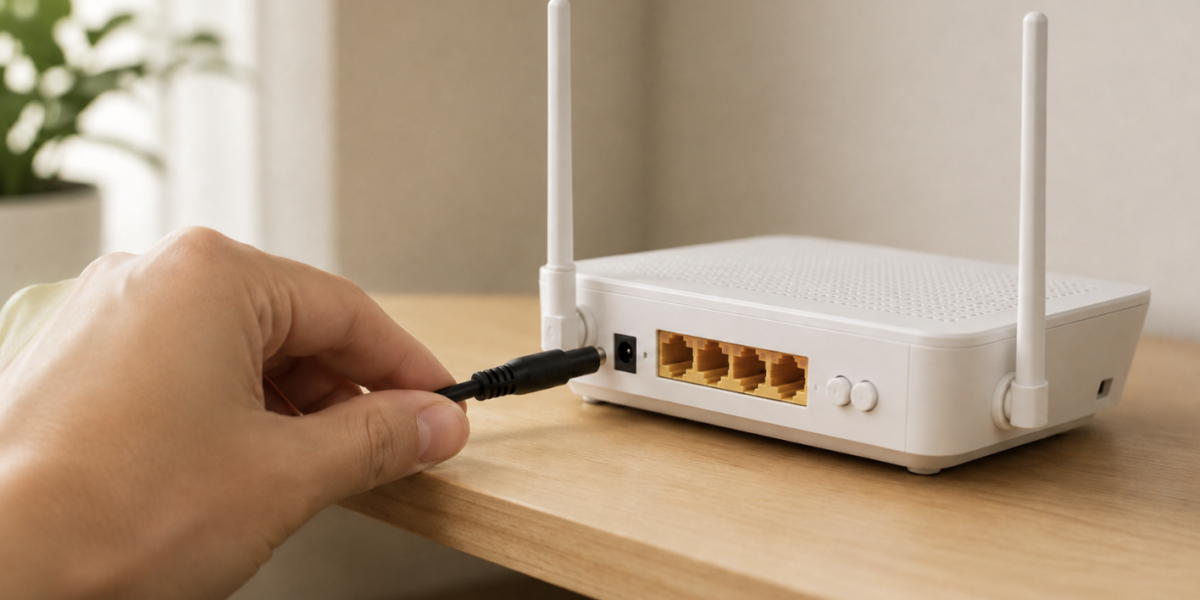
Slow speeds and dropped connections are among the most common home internet complaints. The good news: restarting your router and modem, also called power cycling or rebooting, takes less than 2 minutes and clears most common connection problems. This guide walks you through exactly when and how to do it.
Key takeaways
- A restart and a reset are not the same thing. A restart keeps all your settings intact. A reset wipes them.
- After you unplug your router, always make sure you wait 30 seconds before plugging it back in. Skipping the wait means the restart may not fully take effect.
- Restart your router every 1 to 3 months as routine maintenance, and immediately after a power outage.
- The NSA and FBI recommend weekly reboots as a baseline security habit.
- If restarting helps temporarily but problems keep coming back, the issue is likely the hardware or your provider, not the process.
Restart vs. reset: know the difference before you begin
A restart, or power cycle, temporarily cuts power to the device and then restores it. All your settings, like your network name and password, stay exactly as they are
A reset wipes the device back to factory defaults, erasing your network name, password, and every custom configuration you've made. Many people search for "reset router" when they mean "restart," and end up wiping their setup by accident. If you're troubleshooting a connection problem, always start with a restart, not a reset.
When should you restart your router and modem?
Slow or inconsistent speeds are a clear signal. Routers accumulate memory load (temporary data from active connections and background processes) over time, and a restart clears it, giving the device a clean slate.
Devices that can't connect or keep dropping off the network are another sign. A restart re-establishes the link between your router and your provider, which can resolve handshake issues that build up during normal use. Handshake issues are the small authentication failures that happen when devices can't agree on how to communicate.
After a power outage, restart even if things seem to be working. An abrupt, uncontrolled power cut is different from deliberately unplugging your router. It can interrupt processes mid-cycle and leave the device in an inconsistent state that isn't always obvious right away. A clean restart clears it.
For routine maintenance, restarting once every 1 to 3 months is a reasonable habit, even when you don't notice visible problems. In addition to flushing thememory, it also applies any pending firmware updates. Firmware, the software built into your router, often requires a restart to take effect.
There's also a security reason to restart regularly. Some router malware lives in volatile memory and can't survive a power cycle. A reboot clears it before it can cause damage or spread. In 2026, the NSA and FBI jointly urged Americans to reboot their home routers following a major cyber operation by Russian military intelligence (GRU) targeting home and small-office routers. Weekly reboots are recommended as a baseline security habit.
How to restart your router and modem: step by step
If your modem and router are separate devices, restart the modem first, then the router. If they're a combined unit (sometimes called a gateway), one restart covers both.
- Unplug the power cord from the back of your modem, and from your router if it's a separate device. Do not press the reset button. That wipes your router back to factory defaults, erasing your network name and password.
- Wait 30 seconds. This allows the capacitors (small components that hold a residual electrical charge) to fully discharge and clears the device's working memory. Skipping this step means the restart may not fully take effect.
- Plug the modem back in first. Watch the indicator lights on the front of the device and wait for them to stabilize. This typically takes 1 to 2 minutes.
- If your router is a separate device, plug it in now. Wait for its indicator lights to stabilize before moving on.
- Test your connection on a phone or computer by loading a webpage or running a speed test. If it loads normally, the restart was successful. Most routers complete the full process within 1 to 3 minutes.
When restarting doesn't solve the problem
If a restart doesn't help, check whether your router needs a firmware update. Outdated firmware is a common cause of persistent performance issues that a restart alone won't fix. Most routers have a firmware update option in their admin settings or companion app.
If you find yourself restarting frequently just to maintain a usable connection, the hardware itself may be aging. In our experience, most routers start showing their age after 3 to 5 years, with signal quality and security support beginning to slip. At that point, replacing the hardware is often a more lasting fix than restarting it.
Router placement is worth checking too. Walls and interference from other electronics affect Wi-Fi performance. Moving the router to a more central, elevated spot in your home can make a noticeable difference without any new equipment.
If you've ruled out the hardware and the placement but speeds still feel off, it's worth checking how your router affects the speeds you get. If that checks out too, the problem may be on your provider's side. Contact your ISP's support team for a diagnosis.
Still having issues? All West can help
If restarting your router has become a regular habit, the problem is likely your provider, not your hardware. All West serves homes across Utah and Wyoming with fiber internet built to stay stable.
Check if All West is available in your area.
Already a customer? Reach out to our support team and we'll help figure out what's going on.
Frequently asked questions
What happens if you plug your router back in too quickly?
If you plug the router back in before 30 seconds have passed, the capacitors may not fully discharge and the working memory may not clear completely, meaning the restart does not fully take effect and the same issues can persist.
How long after restarting a router does performance improve?
Most households see improvement within a few minutes of the router coming back online. Speed gains from clearing memory and re-establishing the ISP connection are typically immediate, while firmware updates that applied during the restart may take slightly longer to reflect in performance.
How often should you restart your router?
For most households, once every 1 to 3 months is sufficient for routine maintenance. Restart immediately if you notice slow speeds, dropped connections, or unusual network behavior, but daily restarts offer no meaningful benefit and are unnecessary. For security purposes specifically, the NSA's guidance sets the minimum at weekly reboots.
How long does a router take to restart?
Most routers fully restart within 1 to 3 minutes. All connected devices will lose internet access during that window and reconnect automatically once the router is back online. No manual reconnection is needed on individual devices.