


There’s nothing worse than settling in for movie night, getting to the most exciting scene, and suddenly seeing the dreaded spinning circle. If you’ve been asking why does my TV keep buffering, you’re not alone. It’s one of the most common streaming frustrations for households today.
The good news: buffering usually isn’t random, and it doesn’t always mean your internet provider is at fault. In many cases, your TV is simply trying to play video faster than your connection can deliver it. Think of it like pouring water into a glass while someone is drinking from it at the same time - if the glass empties faster than it fills, everything stops until it catches up.
The right fix depends on whether the issue is speed, Wi-Fi signal, or your home equipment. Here’s how to figure out what’s happening and get back to uninterrupted streaming.
What Is Buffering? (The Bucket Analogy)
Buffering happens when your TV or streaming device temporarily stores video data before playing it. This stored data is called a “buffer.”
A simple way to understand it: imagine a bucket with a hole in the bottom.
- Water pouring into the bucket = your internet download speed
- Water draining out of the bucket = your TV playing the video
- The bucket itself = the temporary storage buffer
If water drains out faster than it pours in, the bucket empties. When that happens, your TV pauses to refill before continuing.
That’s why streaming can stop even if your internet “works.” It may just not be keeping up consistently enough for the video quality you’re watching.
Common Reasons Your TV Keeps Buffering
If your tv keeps buffering, one of these issues is usually the cause.
1. Too Many Devices Using Bandwidth
Your internet speed is shared across your whole home. Streaming on one TV may work fine until other devices jump online.
Common bandwidth hogs include:
- Online gaming consoles
- Video calls like Zoom or FaceTime
- Multiple TVs streaming at once
- Cloud backups
- Smart home cameras
If several people are online at once, there may not be enough bandwidth left for smooth streaming. This is one of the biggest reasons for tv buffering in busy households.
For more on streaming services and home entertainment options, visit All West TV Streaming.
2. Weak Wi-Fi Signal
Distance matters more than most people realize.
If your router is tucked away in the basement, a closet, or behind furniture, the signal may struggle to reach your TV - especially through walls, floors, or metal appliances.
Signs of weak Wi-Fi include:
- Buffering only in certain rooms
- Slower streaming at night
- Smart TVs disconnecting from Wi-Fi
- Streaming works better close to the router
3. Outdated Router Hardware
If your router is more than 3–5 years old, it may not be designed for modern streaming demands.
Older routers can struggle with:
- 4K video streams
- Dozens of connected devices
- Smart home systems
- Large homes with dead zones
Even if your internet plan is fast, outdated hardware can create bottlenecks inside your home.
Immediate DIY Fixes to Stop Buffering
Before upgrading anything, try these simple fixes.
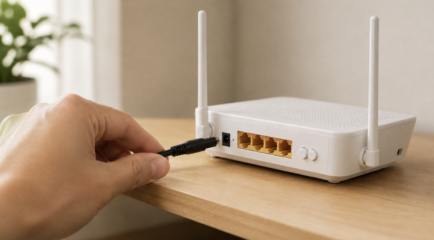
1. Restart Your Equipment
The oldest IT advice still works.
Power cycle your:
- Modem
- Router
- Smart TV or streaming device
Unplug everything for about 30 seconds, then reconnect. This clears temporary memory issues and refreshes the network connection.
2. Check Router Placement
Your router should be:
- In a central location
- Elevated off the floor
- Out in the open
- Away from metal objects
Avoid hiding it:
- In cabinets
- Behind the TV
- Inside entertainment centers
- In the basement corner
3. Disconnect Idle Devices
Even devices you’re not actively using may still consume bandwidth.
Examples:
- Tablets
- Phones
- Laptops
- Security cameras
- Smart speakers
- Game systems in standby mode
Disconnecting unused devices can instantly improve performance.
4. Use a Wired Ethernet Connection
If possible, connect your TV directly to the router using an Ethernet cable.
Benefits include:
- More stable connection
- Faster speeds
- Less interference
- Reduced buffering
If your TV is near your router, this is often the easiest long-term solution.
To learn how the right router affects performance, see All West’s router guide.
When DIY Isn’t Enough: Upgrading Your Setup
Sometimes the problem isn’t a simple reset - it’s that your household has outgrown its current setup.
How Much Speed Do You Actually Need?
General streaming requirements:
- HD streaming: 5–10 Mbps per stream
- 4K/UHD streaming: 25–50 Mbps per stream
That means a family with:
- One 4K TV
- Two smartphones streaming
- A gaming console
- A laptop on video calls
…can easily need over 100 Mbps at peak times.
Whole-Home Wi-Fi Makes a Difference
A single router often can’t cover an entire house consistently, especially larger homes.
Managed Wi-Fi systems like All West Managed Wi-Fi use mesh technology to eliminate dead zones.
Benefits include:
- Better whole-home coverage
- Automatic traffic optimization
- Stronger signal in hard-to-reach rooms
- Smarter device prioritization
That means your streaming TV can get priority over less important devices, like a smart fridge or thermostat.
Frequently Asked Questions
Does lowering video quality stop buffering?
Yes. Lowering from 4K to 1080p reduces how much data your TV needs. If your connection is struggling, this can help immediately.
Is it my TV or my internet?
Try testing another device in the same room.
- If your phone streams perfectly on Wi-Fi, the TV itself may be the issue.
- If everything lags, the network is more likely the cause.
Does weather affect streaming?
Usually not for fiber or cable internet.
However, weather can affect:
- Fixed wireless internet
- Satellite internet
- Outdoor wireless receivers
Heavy storms may occasionally impact those services.
Conclusion: Get Back to Your Show
If your TV keeps buffering, the cause is usually one of three things:
- Not enough internet speed
- Weak Wi-Fi signal
- Outdated hardware
The good news is that many buffering issues can be solved with simple steps like restarting your router, moving it to a better location, or reducing the number of connected devices.
If the spinning circle keeps interrupting your evenings, it may be time to evaluate your internet plan or upgrade your home Wi-Fi setup.
All West Internet services can help you check your speed, improve coverage, and make sure every room in your home is ready for smooth streaming.